What do I need to use Apple CarPlay?
To use Apple CarPlay, you need:
You are currently viewing content for the location:
United States / English
Please select your region/language
You are currently in United States
Apple CarPlay® lets you use your iPhone apps directly on your car’s Porsche Communication Management (PCM) infotainment system, so you can stay connected while keeping your focus on the road. Navigation, calls, messages and music are all controlled through the touch screen or by voice commands for a seamless driving experience.
This article applies to the following models
718 model years 2017-2025
911 from model year 2017
Taycan from model year 2020
Panamera from model year 2017
Macan model years 2017-2026
Macan Electric from model year 2024
Cayenne from model year 2017
Cayenne Electric from model year 2026
To use Apple CarPlay, you need:
Wireless Apple CarPlay is available for the following models with the latest software version:
Notes
Follow these steps to connect Apple CarPlay wirelessly:
From model year 2022
Option 1
Option 2
From model year 2020
Option 1
Option 2
From model year 2022
Option 1
Option 2
Model year 2021
From model year 2020 (production date: from November 2019)
From model year 2024
From model year 2022
Option 1
Option 2
Model years 2020-2021 (production date: from November 2019)
From model year 2026
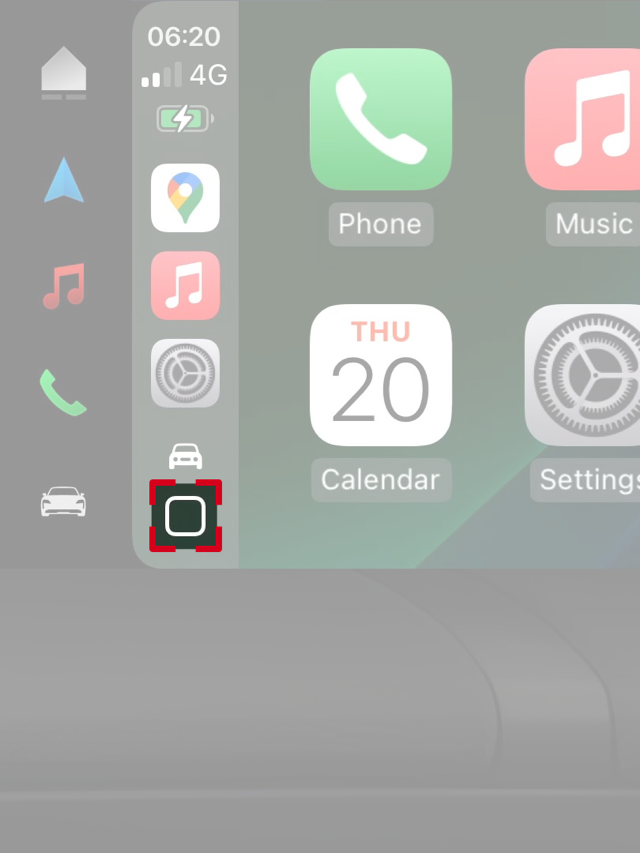
Tip: While using Apple CarPlay, you can switch between full screen and split screen by swiping up or down at the bottom of the display. Split screen lets you use the lower part of the screen for other PCM functions and apps while Apple CarPlay stays visible above.
Spot On is a video series that explains various features of your Porsche. In this episode, discover how to use Apple CarPlay for a seamless connection between your Porsche and your iPhone.
Spot On is a video series that explains features of your Porsche. In this episode, see how to set up Apple CarPlay in your Macan Electric.
To use Apple CarPlay with Siri, make sure that:
Start Siri in one of these ways:
To end Siri:
When Siri is active and waiting for a voice command, press the voice control button on the steering wheel. You’ll hear a tone fade out.
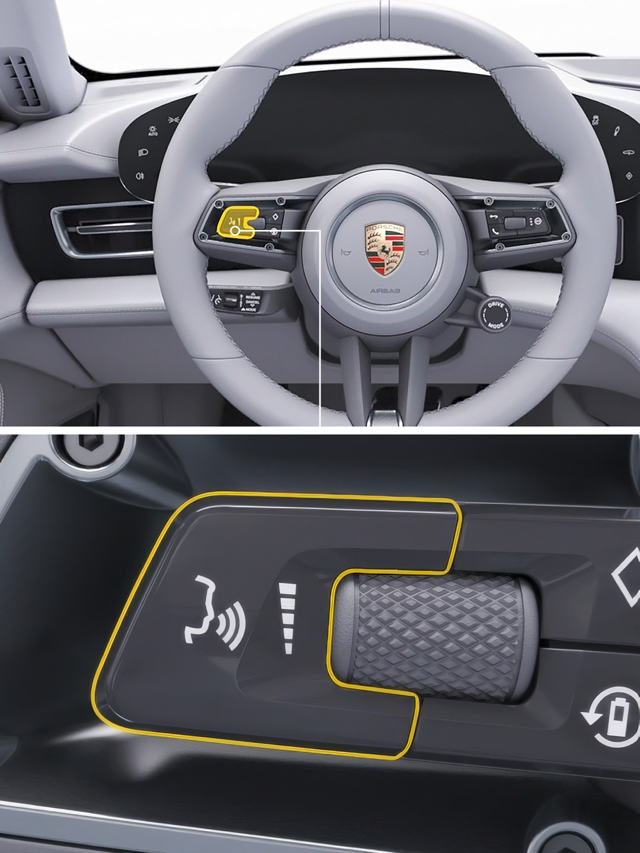
To ensure an optimal wireless connection, make sure your iPhone has the latest version of iOS installed.
If wired Apple CarPlay isn’t working, try the following:
You can connect more than one iPhone to Apple CarPlay in your car, making it easy for different drivers to use their own phone and apps when they get in. See above for details on connecting an iPhone wirelessly.
How to choose which iPhone to use
To switch from wireless to wired Apple CarPlay, follow these steps:
“My Porsche in Apple CarPlay” lets you control several car features without leaving the Apple CarPlay interface on your central display, including:
This feature is available in the 911, Taycan, Panamera and Cayenne from model years 2023-2026 with the latest software version.
How do I set up “My Porsche in Apple CarPlay”?
All changes are updated in Apple CarPlay in real time.
For more on configuring the spaces, watch the Spot On video below. How to use the My Porsche app in Apple CarPlay | Tutorial | Spot On
For more support, visit Apple’s official support pages. The article Intro to CarPlay and iPhone – Apple Support explains setup steps, personalization options and everyday use of all Apple CarPlay functions. If Apple CarPlay isn’t working as expected, the guide If you need help with CarPlay helps you troubleshoot common issues and check settings on your iPhone and in the car.
If you require further guidance, we can assist you in finding the right solution.